

Usage guidelines
Every download is a layered Photoshop file with a smart object for each screen. Here's how to drop your design in.
What you'll need
- Adobe Photoshop CC 2021 or later.
- Your design, exported at the size of the mockup's screen.
What's in the download
- The PSD mockup, 4000 × 3000 px at 300 dpi.
- A preview image of the scene.
- The license and a short how-to guide.
Adding your design
- Open the PSD in Photoshop.
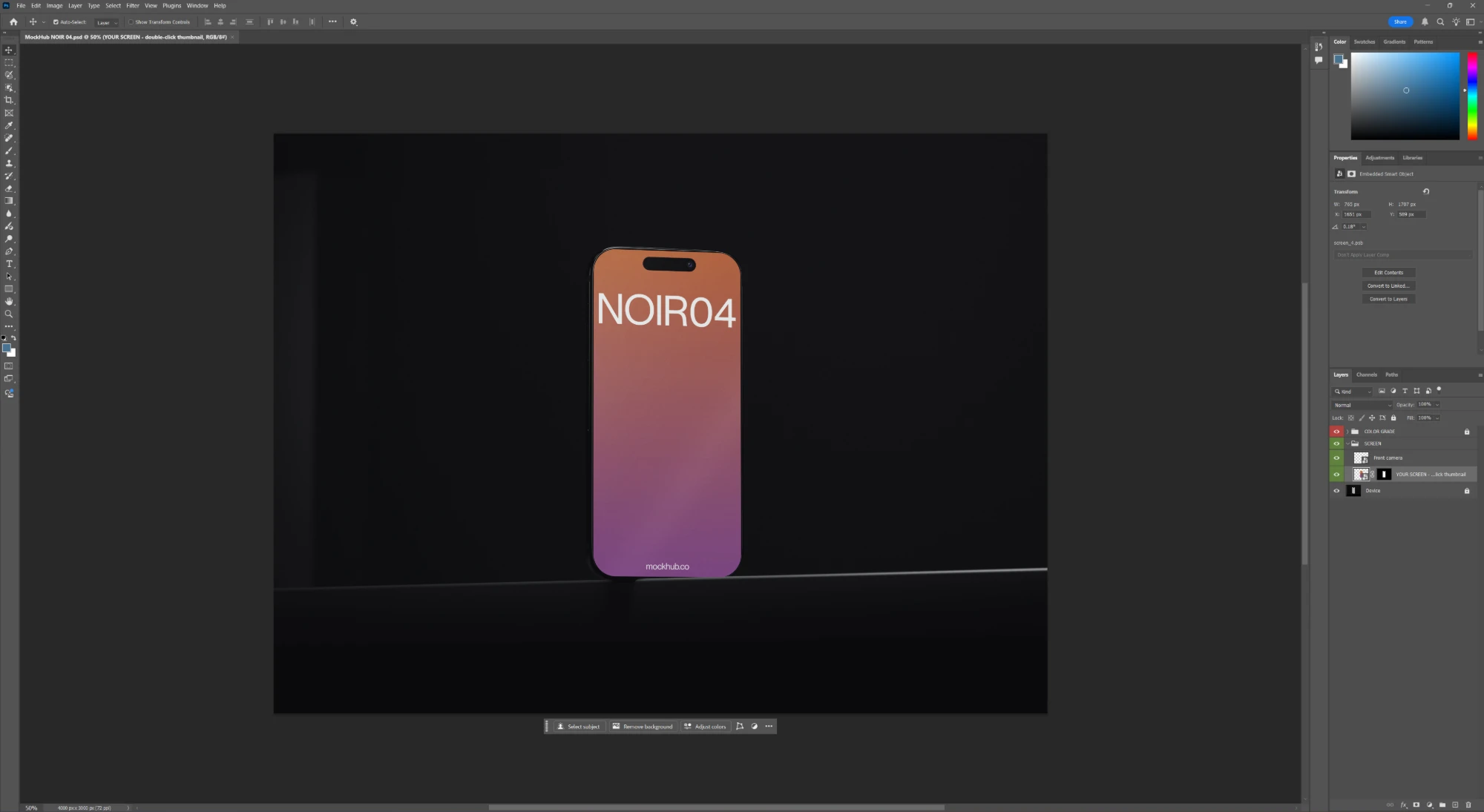
- In the Layers panel, open the SCREEN group and find the smart object layer marked for your design (named “YOUR SCREEN – double-click thumbnail”).
- Double-click its thumbnail. The smart object opens in a new tab.
- Paste or drag your design in, scaling it to fill the canvas.
- Save (Ctrl + S on Windows, Cmd + S on Mac) and close the tab. Your design appears in the mockup with the scene's lighting and perspective applied.
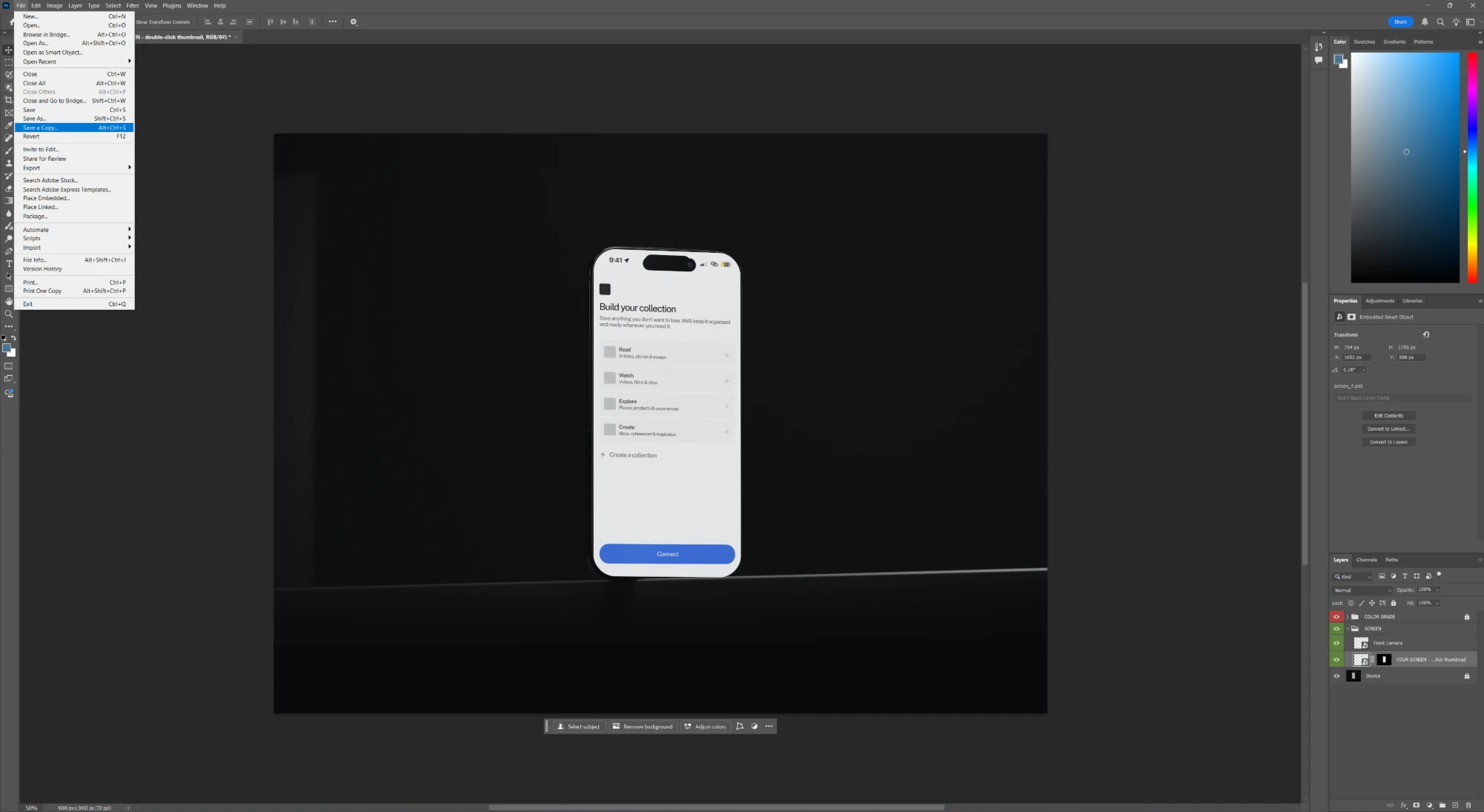
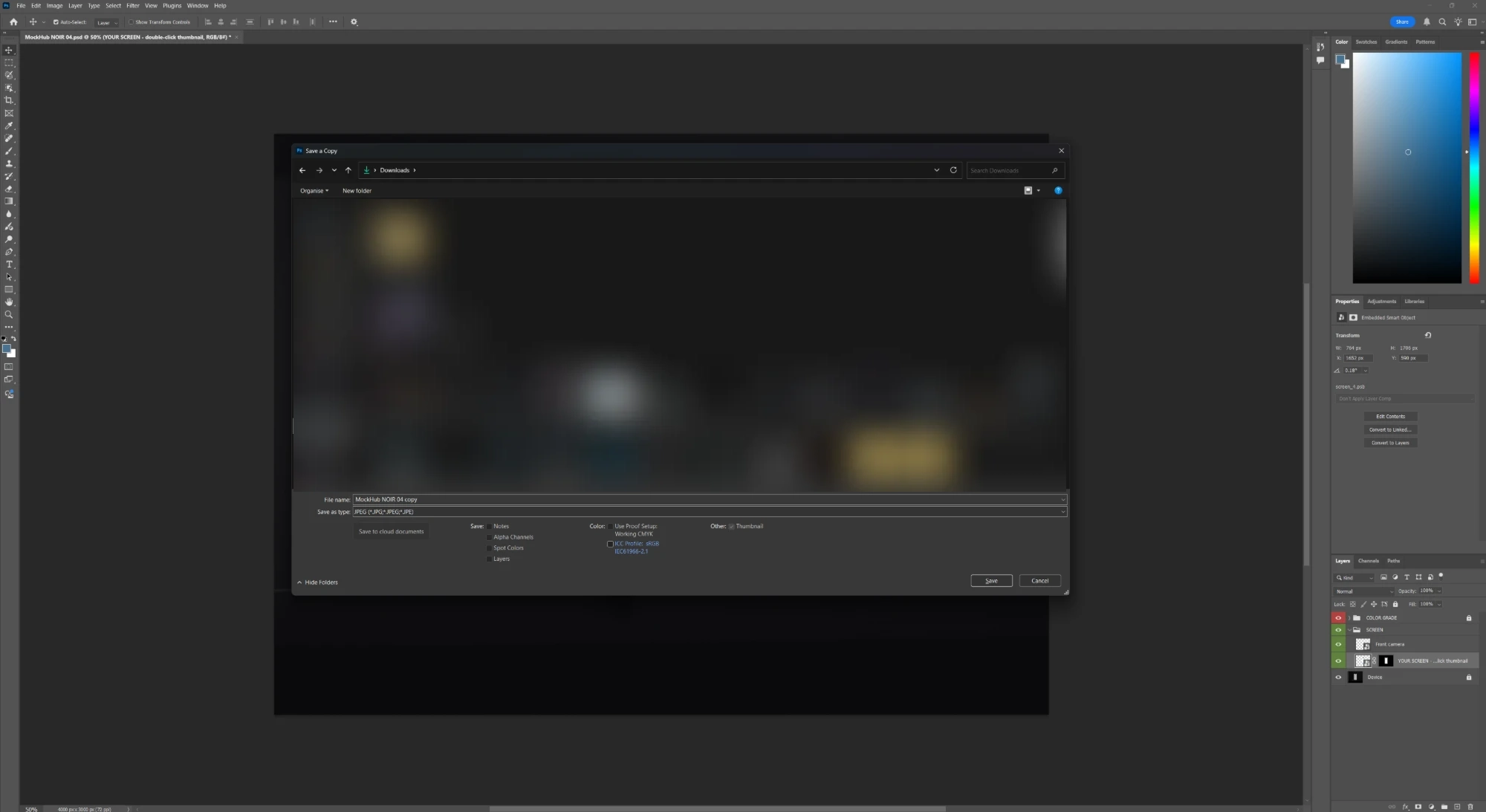
- Export with File → Save a Copy, choosing JPEG or PNG as the file type.
Sharing your work
Post the images you make anywhere. Credit isn't required, but a mention of MockHub helps other designers find the library. For what you can and can't do with the files themselves, see the License Terms.